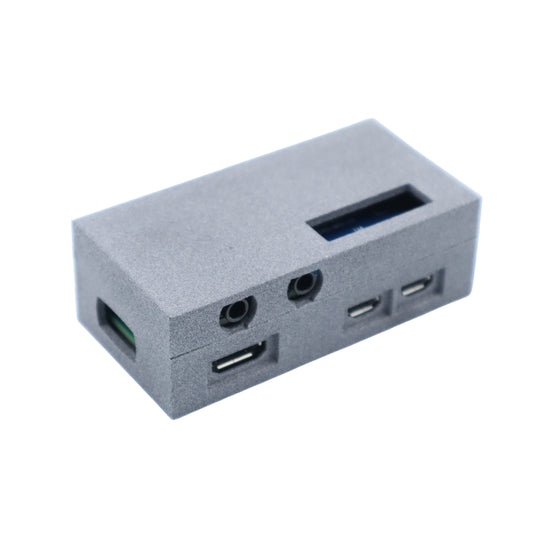


This article will show you how to configure the SLIM MIDI interface for your Raspberry PI5. It’s best if you’re already familiar with Raspberry and the Linux command line.
Configure the SLIM MIDI interface on your Raspberry PI 5
The instructions below were tested with Raspberry Pi OS / Debian versions 12 and 13 (Trixie). If you find problems please contact our support with the contact form. We will be pleased to assist you. (do not comment on this blog post, we don't often read the comments because of spam).
Setting the transmission speed of the serial port is crucial when configuring MIDI on a Raspberry. MIDI connections are slower than USB or Ethernet, transmitting data at 31.25 kbps (3125 bytes/second). This speed is adequate for transmitting control signals and performance data used in music production.
Raspberry PI MIDI quick start with this ttymidi package
This is the recommended setup method, since included scripts will properly configure boot options and kernel parameters.
Using the 'ttymidi' program will connect this MIDI serial port with the Alsa abstraction layer. Install this version of ttymidi from Github, since it's the only one that supports all MIDI messages like Sysex, Timings etc.
A 64bits package for the Raspberry PI OS version 12 or 13 can be downloaded here: ttymidi-rpi_0.20240907-bullseye_arm64.deb
Install the package with 'sudo apt-get install ./ttymidi-rpi_0.20240907-bullseye_arm64.deb',
It will setup the background ttymidi service, the boot files, etc, so no need to run the raspi-config command.
After this, reboot your Raspberry.
- Tip: the Github release section now contains also a ready-to-use Raspberry PI OS disk image to get you started quickly.
Checking the configuration and basic tests
After the reboot, you can start one of example MIDI scripts:
python3 /usr/share/doc/ttymidi-rpi/examples/seq-midi-loop8.py
Connect a MIDI keyboard to the Slim MIDI interface, start the MIDI clock on your keyboard, and played notes will start looping in tempo, on MIDI out.
If you see nothing displayed on your terminal, then you should make the following checks:
- Check the ldrolez/ttymidi-sysex main page, it has always up to date tips for troubleshooting
- For the Raspberry PI 5, the kernel version must be 6.12.32 or newer
- Check that you have 'dtoverlay=midi-uart0-pi5' in /boot/firmware/config.txt
- Check that the ttymidi-rpi service is using /dev/ttyAMA0, not /dev/serial0: systemctl status ttymidi-rpi
What to do next?
To continue your exploration of MIDI on Raspberry, I can recommend these links:
- ttymidi sysex Python Examples
- more details in the Raspberry PI 3/4 MIDI blog post
- tech details for the MIDI hat
- SHLD blog about MIDI on the Raspberry PI
If you have any issues, contact our support via the Messenger icon below or through the email in your order receipt. Avoid comments under this blog post if it's urgent! Thank you!
